
Connect GitHub
Register your Octoflow webhook URL in a GitHub repository or organization.
Webhooks can be added to a single repository or an entire organization. Adding to an organization means all repos in that org can share one webhook — we recommend this approach where possible.
Step 1: Register the webhook in GitHub
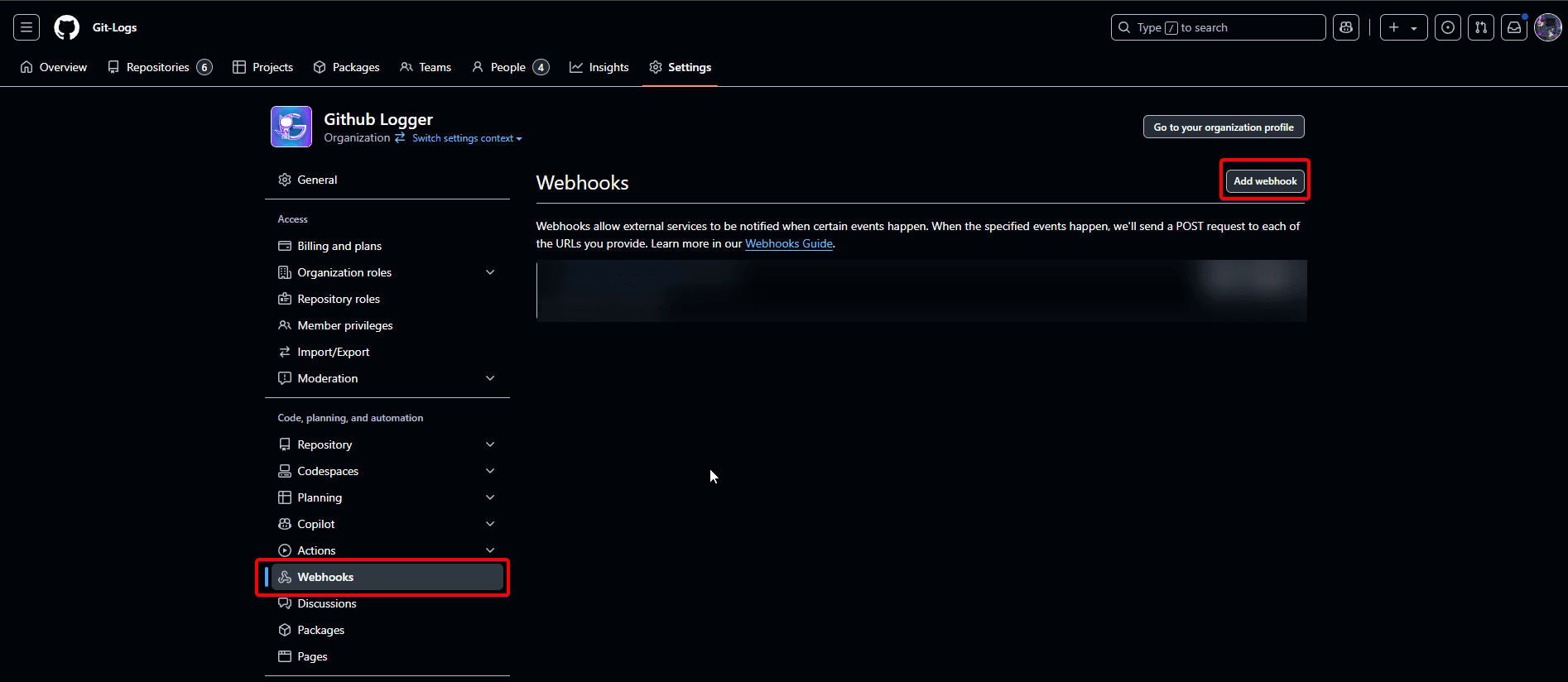
Open repository or organization settings
Navigate to the GitHub repository (or organization) and click the Settings tab.

Fill in the form
Use the credentials from the DM the bot sent you:
| Field | Value |
|---|---|
| Payload URL | https://v2.gitlogs.xyz/kittycat?id=YOUR_WEBHOOK_ID |
| Content type | application/json |
| Secret | The secret from your bot DM |
| Which events | "Send me everything" or pick specific ones |
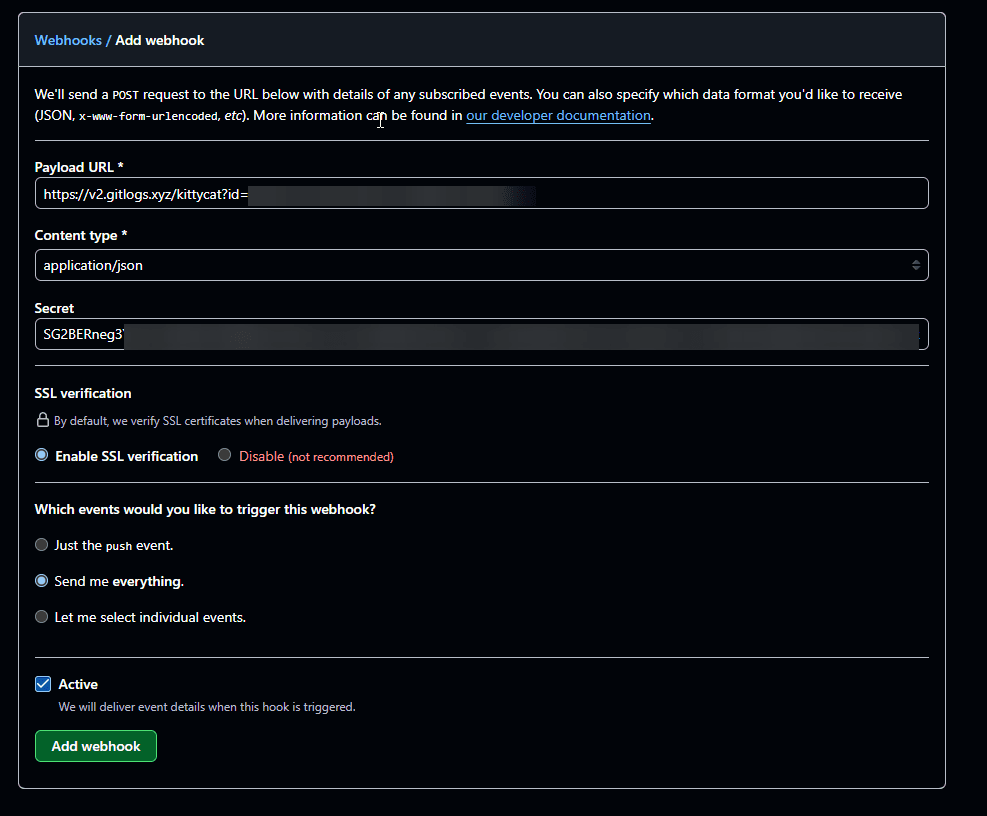
Content type must be set to application/json. The bot will not process events sent as application/x-www-form-urlencoded.
Save the webhook
Click Add webhook. GitHub will send a ping event to verify the URL is reachable.
Step 2: Link a repository in the bot
Now tell the bot which Discord channel to route events from this repo to.
Run /newrepo with the following parameters:
| Prop | Type | Default |
|---|---|---|
webhook_id | string | - |
owner | string | - |
name | string | - |
channel | channel | - |
Example:

Events will start flowing immediately after this command succeeds.
Troubleshooting
- 206 status from GitHub delivery — This means the repository sending the event hasn't been linked to this webhook yet. Run
/newrepowith the exact owner/name of the repository that's failing. - Bot not responding — Check that the bot has Send Messages and Embed Links permissions in the target channel.
- No events appearing — Confirm GitHub is delivering successfully by checking the Recent Deliveries tab on the webhook settings page.
For deeper diagnostics — including a live dump of your webhook's config and per-event audit logs — see Debugging Webhooks.